
The Notification Templates feature within the Workflow settings allows users to create and manage customized notifications triggered by specific student actions. With this tool, you can add new templates, define titles and subjects, insert dynamic template variables, and choose from a variety of ready-made templates to streamline communication. Once a template is selected or created, its content appears in the editor, where it can be customized further before saving. This functionality helps automate and personalize messaging, improving the overall efficiency and effectiveness of student engagement.
Prerequisites:
- Access to workflow settings
1. Click the Notification Templates button under Workflows.
2. The notification template allows you to create customized notifications based on student actions. Click the + Add Notification Template to create a template.
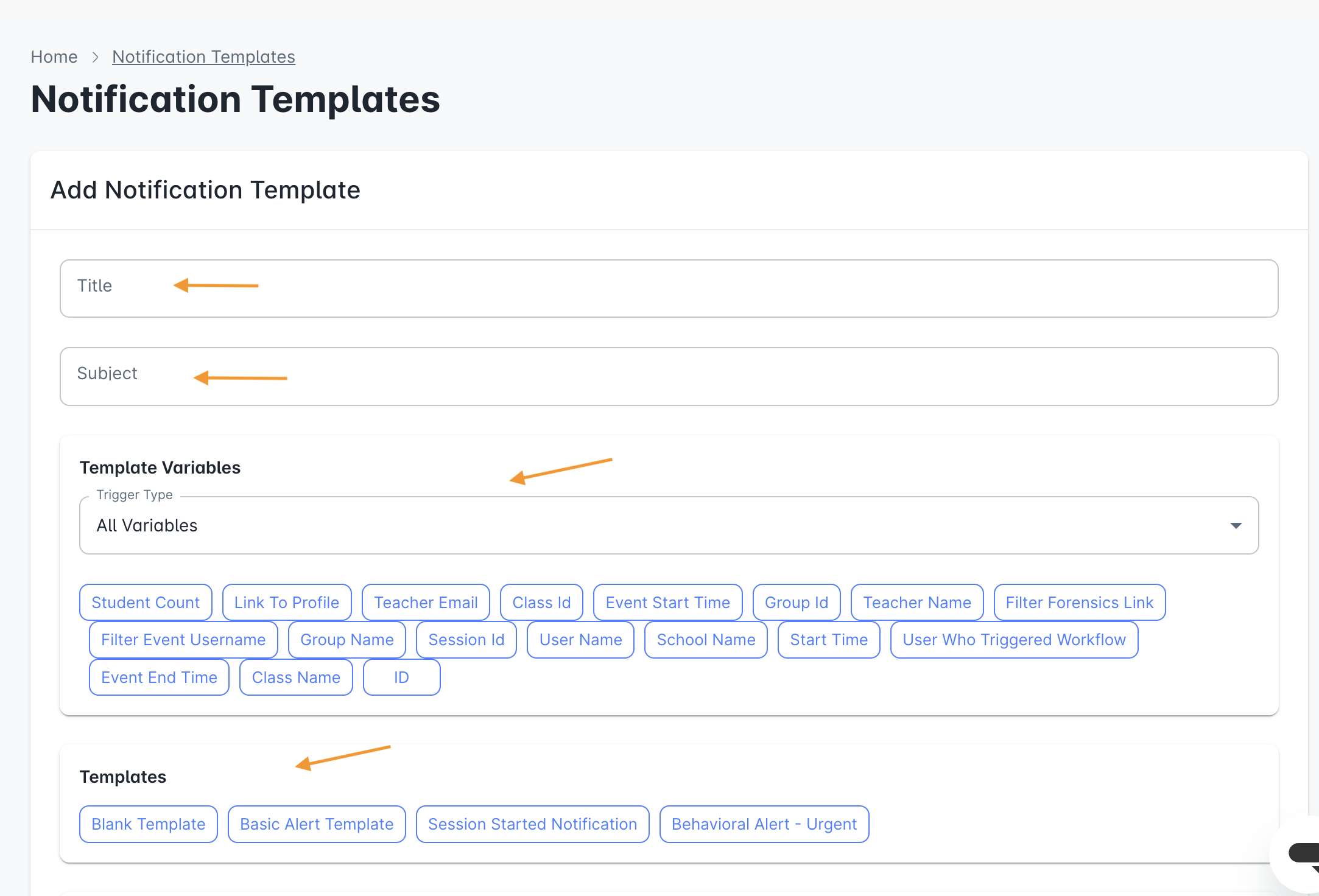
3. Next add in the following:
- Title: Create a title for the template
- Subject: Subject of template
- Template Variables: Variables to include within the customized template
- Templates: Variety of ready made templates to utilize
Template Variables
4. When the template content is selected, it will appear in the Content section.
5. Click the Save button to save the customized template.
Comments
0 comments
Article is closed for comments.