
Live Class View allows teachers to monitor their classes in real time, offering several options to customize how student information is displayed. This guide explains how to set your viewing preferences—whether sorting student tiles by preferred order, alphabetical order, or online status. Before getting started, ensure you have access to Classroom Management under the Classes section.
Prerequisites
- Access to Classroom Management > Classes
To sort by Preferred
1. Start the class, in the top left-hand section, select Preferred.
2. Click Set and then use your mouse/cursor to drag the tiles to your preferred order. The mouse will change from a curser to a hand.
3. Click Save to save your preferred order.
To sort by A-Z
Next to Sort By, click A-Z to view the student tiles in alphabetical order based on first names.
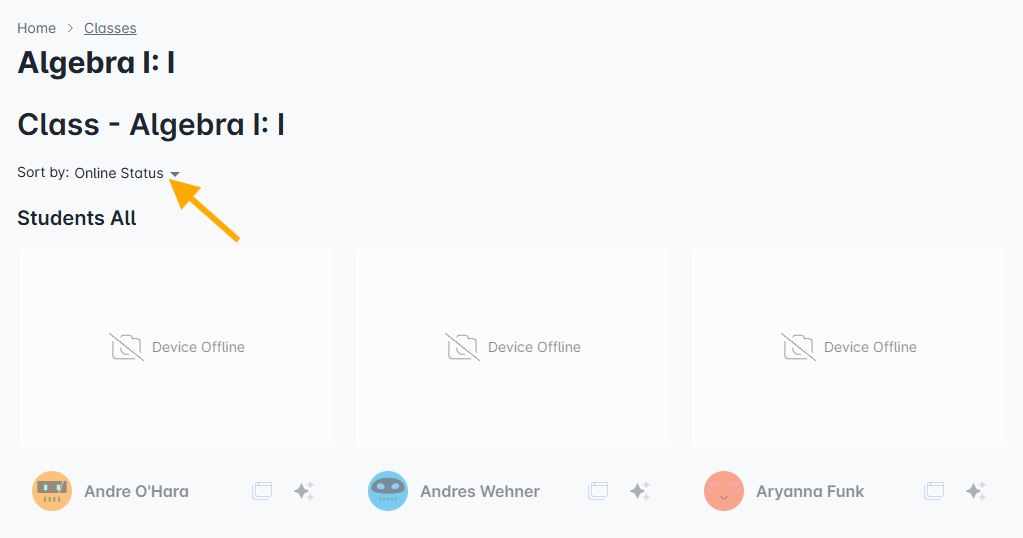
To sort by Online Status
Next to Sort By, click Online Status. Any student device offline will move to the bottom of the sort.
To Stop Session
When you are finished using the Live Class View, click Stop Session in the upper-right corner. This will return you to your classes view page.
Comments
0 comments
Article is closed for comments.